Start with the routine
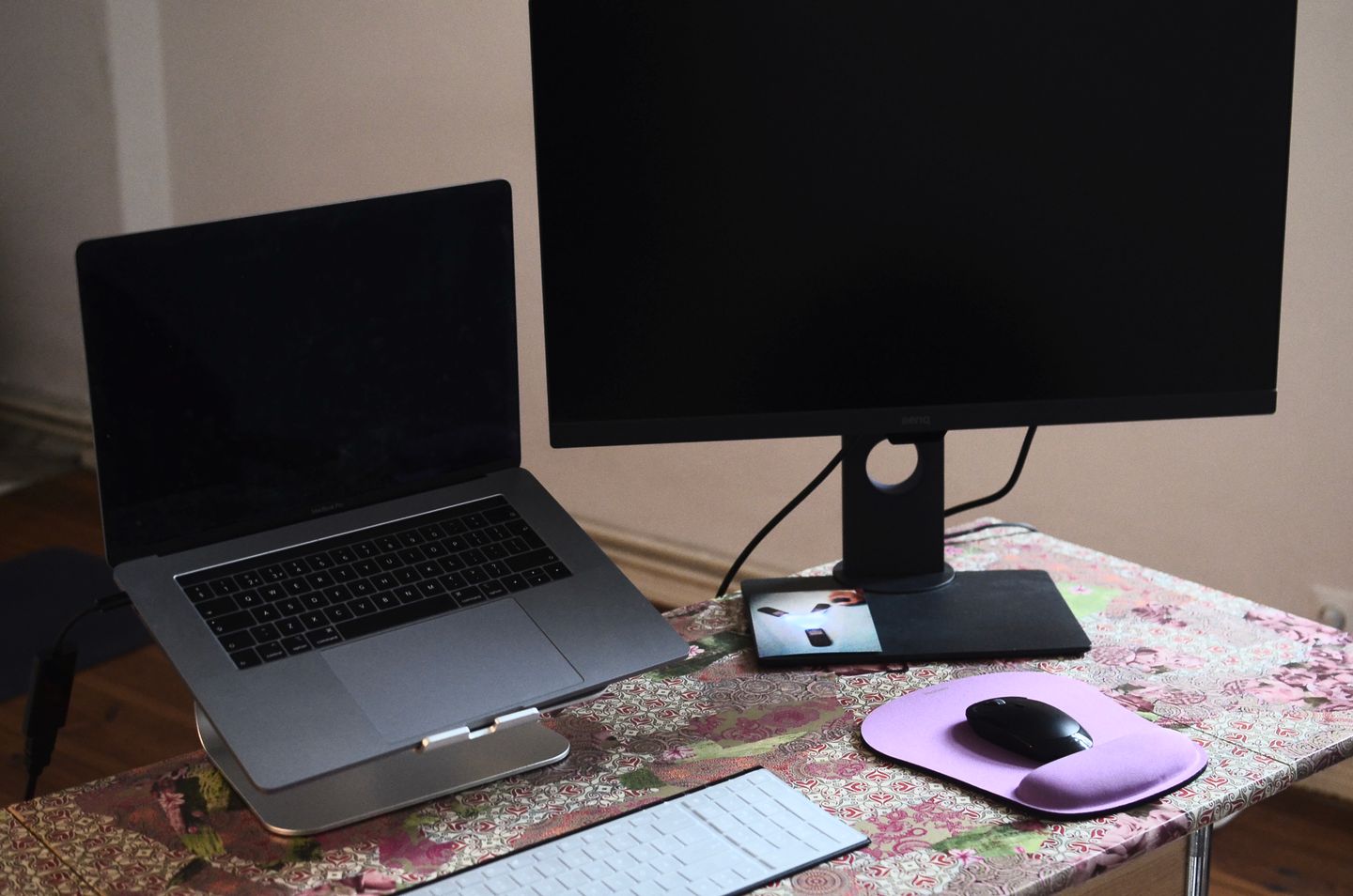
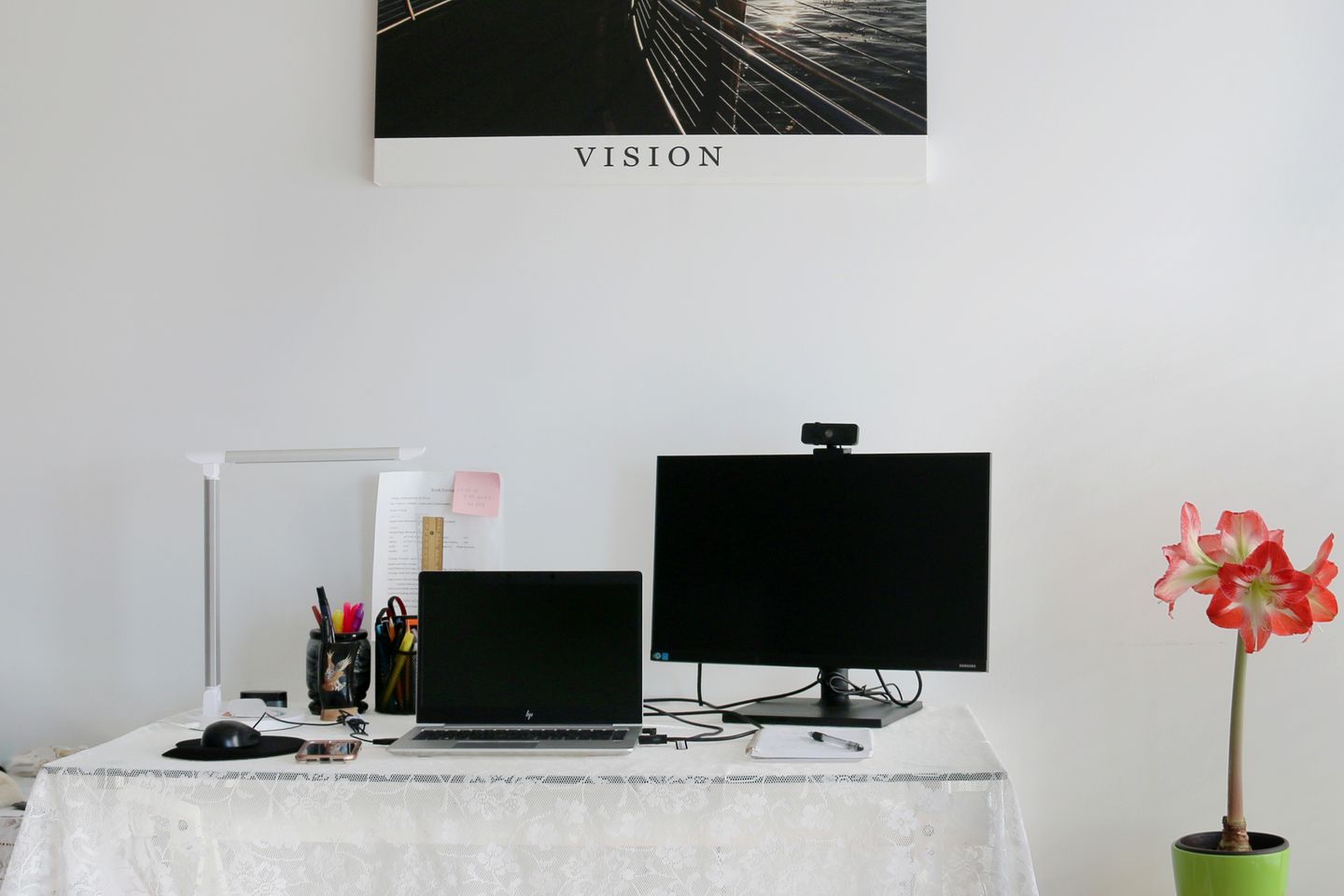
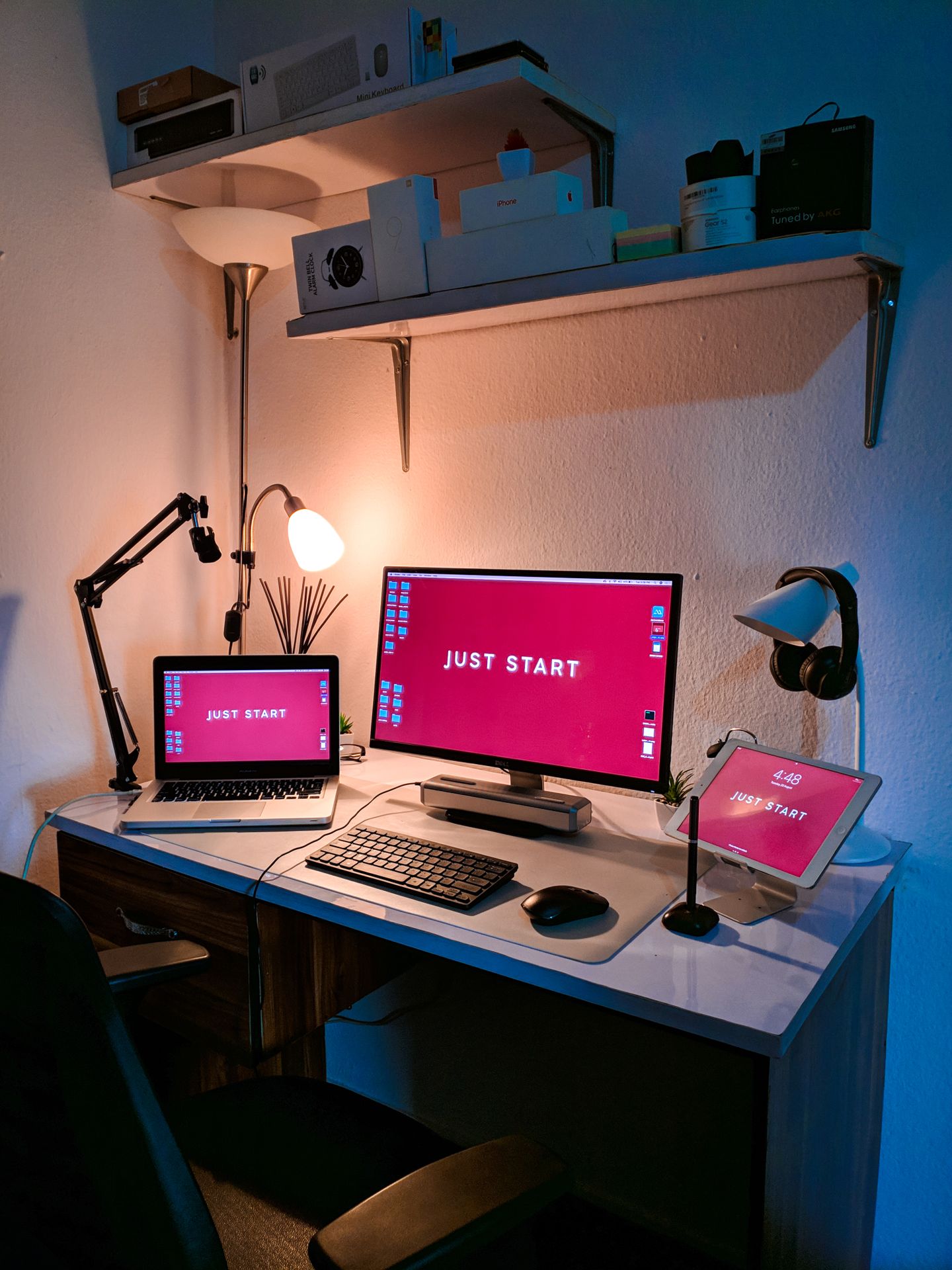
A monitor can make documents easier to compare during a workday, but in a small room it has to share the desk with a laptop, notebook, and sometimes another person’s things. The ideal screen is one you can position comfortably without pushing the keyboard to the edge.
What to compare before you buy
Measure the usable desk width and depth with the chair in its normal position. Compare screen size and resolution with viewing distance, text size, and the kind of work you do. Check stand height, tilt, VESA support, and whether the base crowds the keyboard area. Then list the laptop ports and compare the monitor’s inputs, power delivery, and cable requirements. A built-in hub can simplify connections, but confirm which ports work at the same time and at what resolution and refresh rate.
A practical buying checklist
Keep these checks beside the product page while you compare current options:
- Measure desk depth and the distance from your eyes to the screen.
- Check the laptop’s display-output limits and the monitor’s exact supported modes.
- Compare stand adjustment or the cost and compatibility of a separate monitor arm.
- Plan cable routing and leave space for shared household tasks.
The trade-off to make visible
A larger screen can show more information but dominate a shallow desk. A smaller display preserves workspace but may require more window switching. A monitor with a docking hub reduces cable clutter only if its ports match the devices you connect.
A good fit when
Hybrid workers who can name the tasks a second screen would simplify and have measured where it will sit.
Think twice when
Anyone buying by diagonal size alone before checking desk depth, laptop compatibility, and the daily cable routine.
Lifeperch takeaway
Hybrid workers who can name the tasks a second screen would simplify and have measured where it will sit. Before ordering, verify the product’s current dimensions, compatibility, and return terms on the retailer’s listing.
Check current optionsCommon questions
Is 4K necessary for a work monitor?
It depends on screen size, viewing distance, and the laptop’s output. Compare text clarity at your normal scaling before treating resolution as a must-have.
Can one USB-C cable connect everything?
Only when the laptop and monitor support the required video, power, and data functions over that cable. Check each device’s specifications.
Lifeperch guides are designed to help you compare fit and trade-offs. We do not claim hands-on testing unless a guide explicitly says it took place.
Read the affiliate disclosure